Siemens TIA Portal
License Requirements
Siemens Tia Portal and Step7 products require valid licensing to operate. All license management is handled through the SDA license management system within the SDA console. Please see the Adimistration Licensing for details on how to upload your license.
Siemens TIA Portal Connectivity
Please follow the steps below to connect to your PLC:
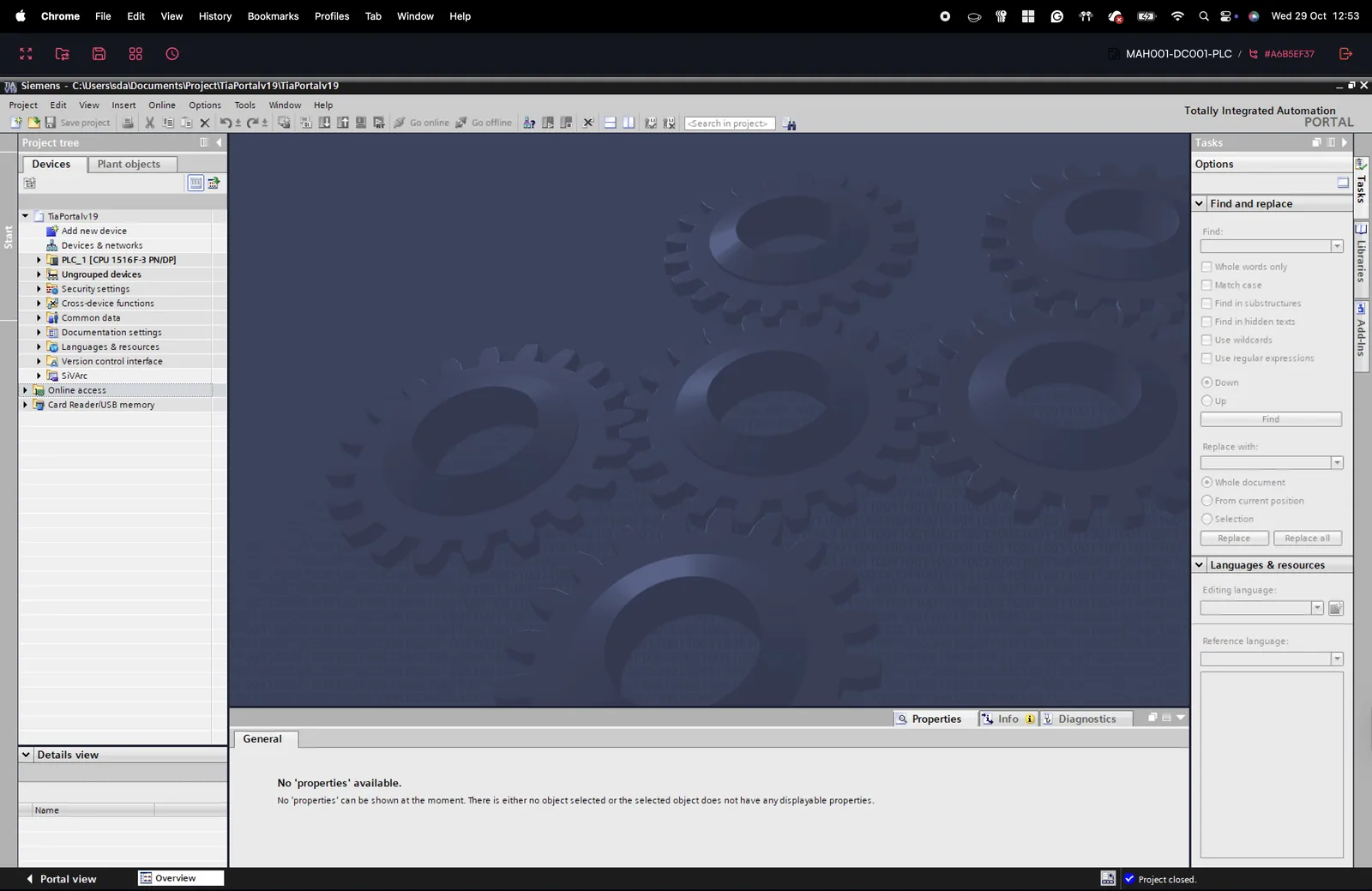
- Check in the SDA console if the status of your PLC is “Connected”. If not, please check the configuration of the gateway and the control
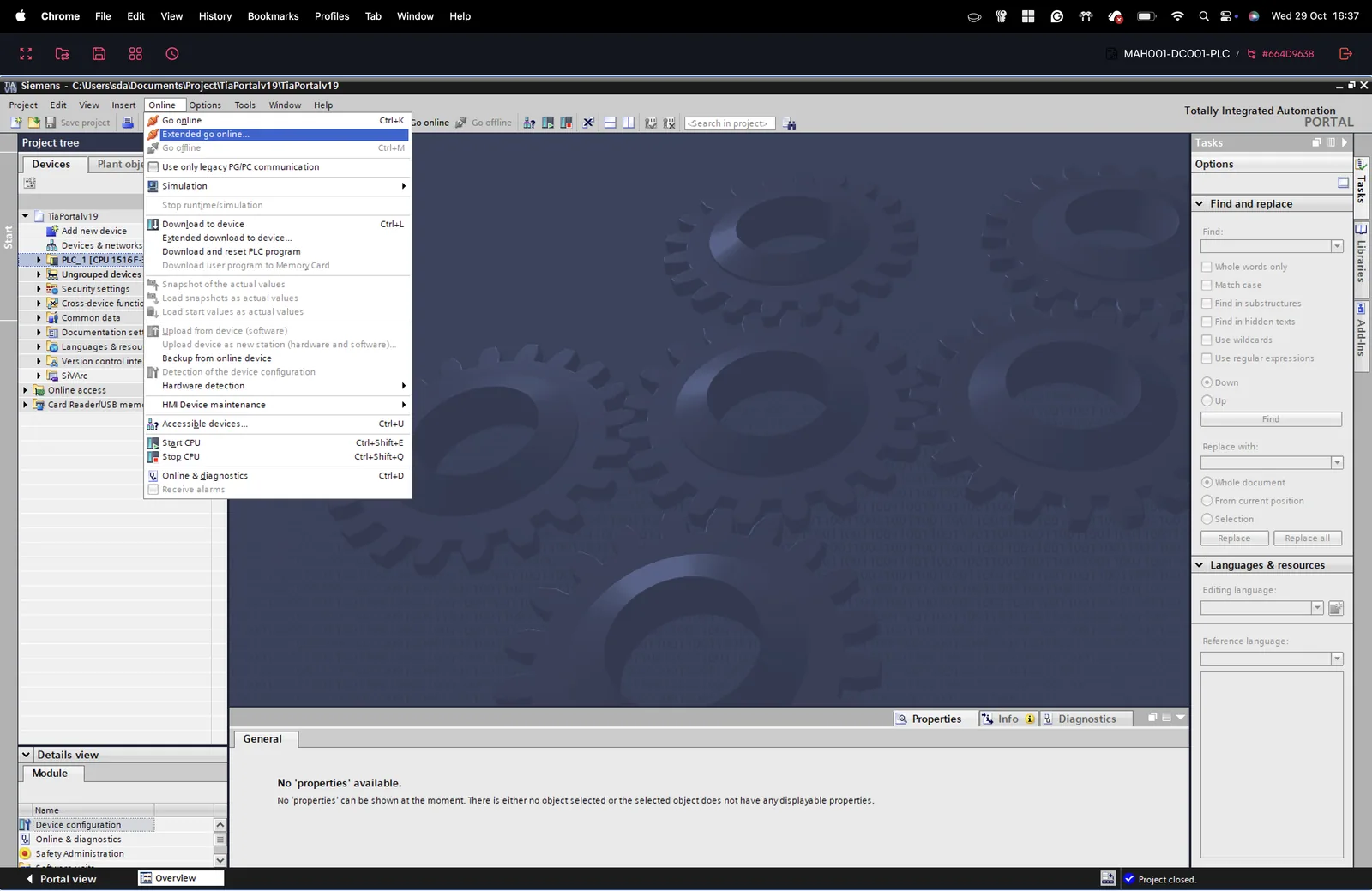
- To connect with your PLC go to Online/Extended go online (see figure below)
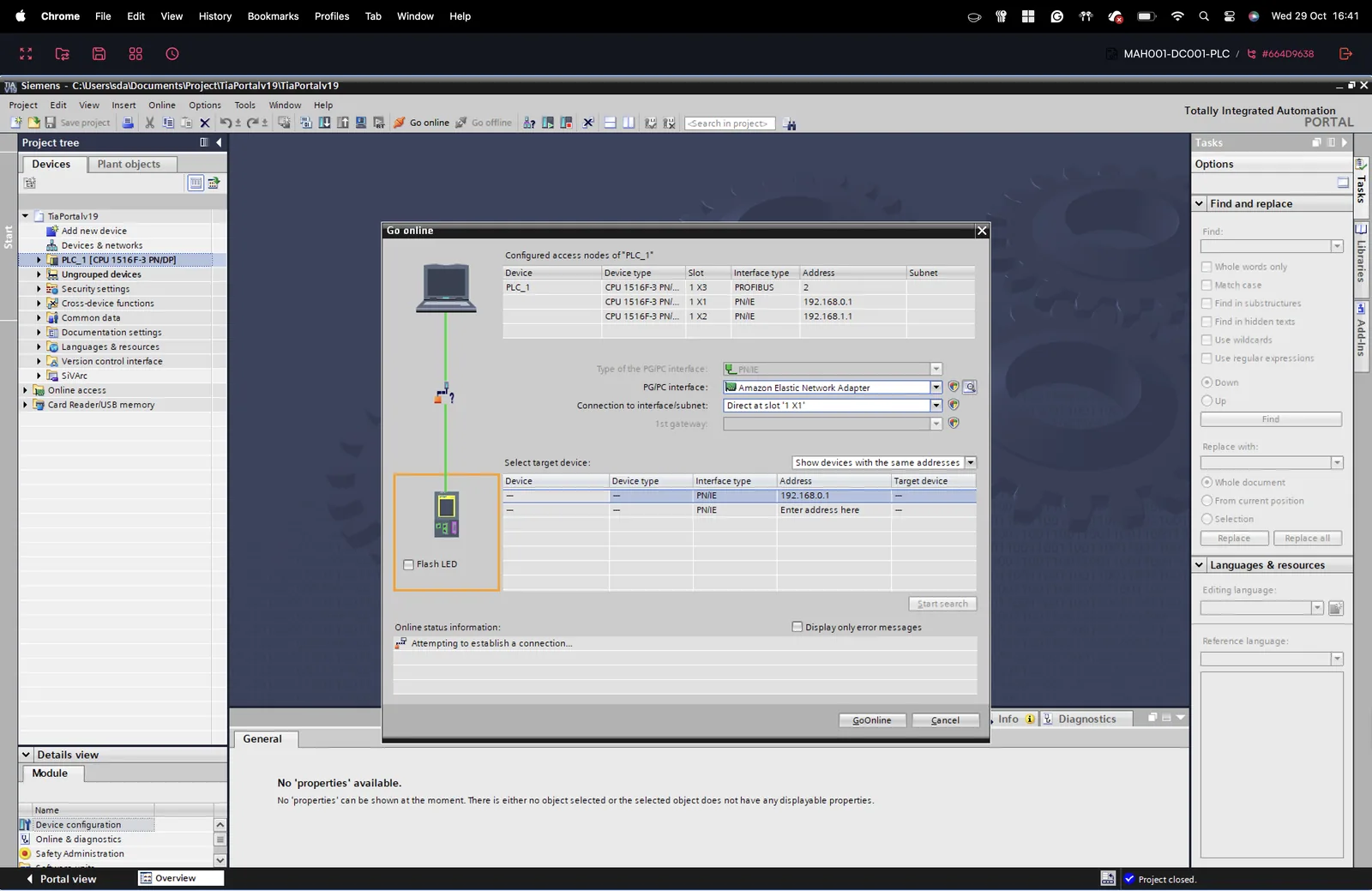
- Choose the PN/IE interface (see figure below), choose the interface: Amazon Elastic Network Adapter and change the address to 127.0.0.3 (Note: This setting is always identical, independent of the IP address of your PLC. Please configure the IP address of your PLC in the respective Ethernet configuration)
- Press “Extend Go Online”
Please note that if you are a user of the SDA Connectivity Service V2 that you don't have to use the IP 127.0.0.3, but can use the local IP of the PLC that is typically configured in the PLC project by default. The ip address is also displayed in the connectivity indicator in the top bar.
TIA GSD Handling
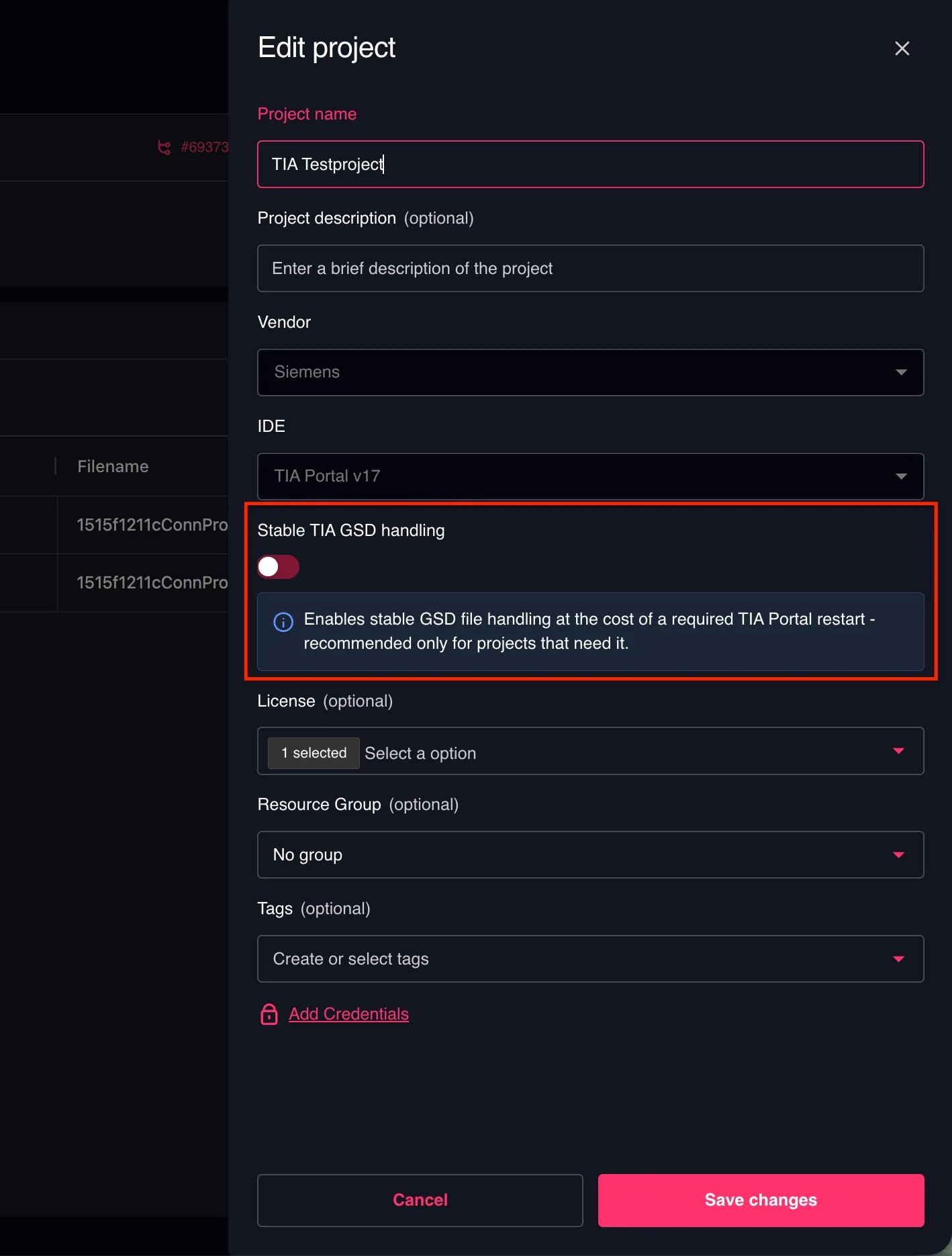
In some Siemens TIA projects, GSD files may not be fully installed during a Browser Based Engineering session. When this occurs, you'll notice in the Devices & Networks view that some devices are not correctly assigned.
To resolve this, you can enable a more reliable GSD handling method for the affected projects. Navigate to Edit project and turn on Stable TIA GSD handling. Note that this will increase project loading times, but it ensures GSD files are handled correctly.