Table views
Every list in the platform now keeps the way you left it, and you can save one layout as your own default. Filters, search, sorting, rows per page and the column layout are all part of a table view.
Nothing needs to be switched on: the moment you filter, sort, resize or hide a column, that table remembers it.
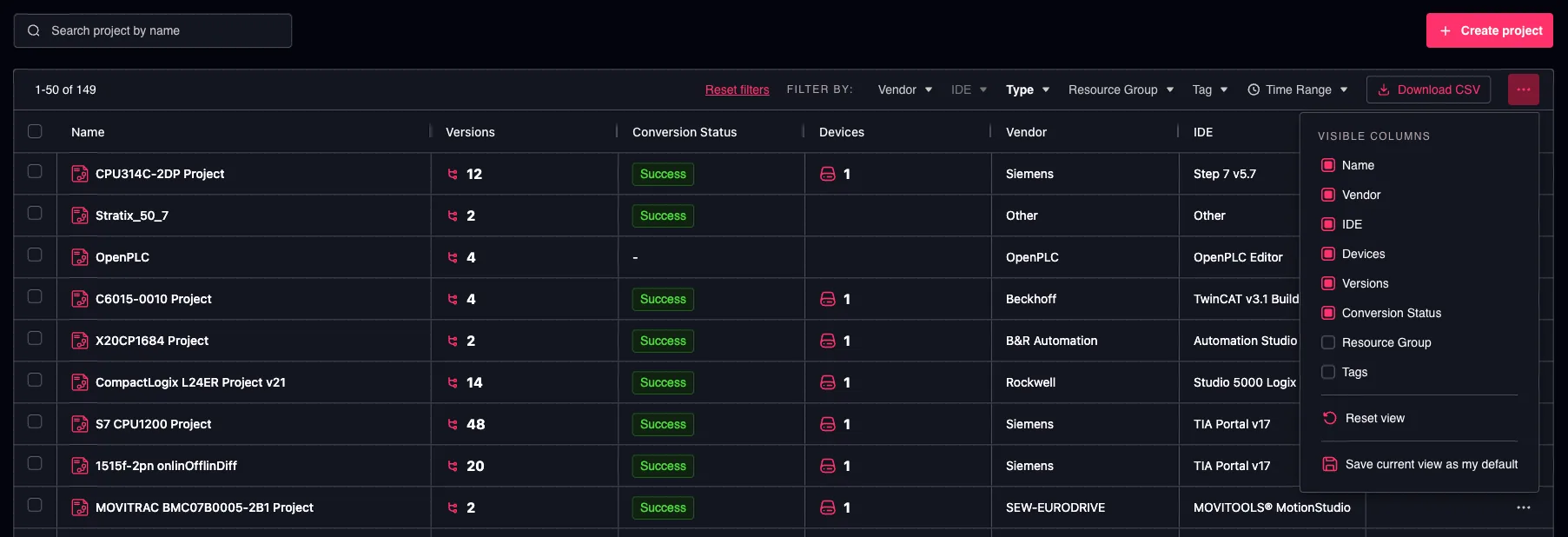
Table view options
What a table view contains
| Part of the view | Example |
|---|---|
| Filters | Vendor = Siemens, Group = Line 4 |
| Search text | "pump" |
| Sorting | Last modified, newest first |
| Rows per page | 50 |
| Column layout | Column widths, column order, hidden columns |
The two layers
Table views work on two layers, and you never have to choose between them — they simply apply in order.
| Last used | My saved default | |
|---|---|---|
| How it is created | Automatically, as you work | Explicitly, via Save current view as my default |
| Contains | Filters, search, sorting, rows per page, page number, column layout | Filters, search, sorting, rows per page, column layout |
| Stored | In this browser | On your account |
| Available on another browser or device | No | Yes |
| Survives clearing browser data | No | Yes |
"Last used" is a convenience, not a setting. If it is ever lost — a new browser, a private window, cleared site data — the table falls back to your saved default, and you lose nothing you saved.
The table view menu
Open the ⋯ button (Table view options) at the right-hand end of the filter row.
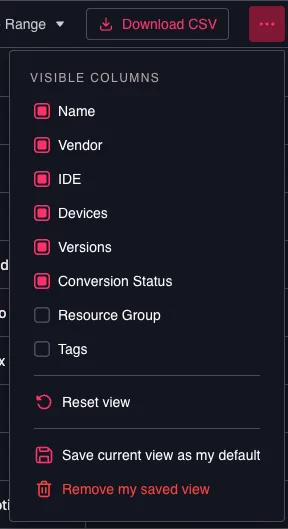
Table view options menu
Visible columns
Tick or untick a column to show or hide it. The change takes effect immediately and is remembered straight away — there is nothing to confirm.
At least one column has to stay visible, so the last remaining column cannot be unticked. Selection checkboxes and the row-actions column are fixed in place and are not listed.
Reset view
Puts the table back to its delivered state: default filters, default sorting, default rows per page and the original column widths, order and visibility. Any per-filter defaults you or your company have set still apply — Reset view returns the table to its defaults, not to a blank state.
Reset view does not delete your saved default. Opening the table again brings your saved default back.
Save current view as my default
Stores the table exactly as it looks right now — filters, search, sorting, rows per page and the column layout — on your account. From then on, that is how the table opens for you, on any browser and any device.
The page number is deliberately not saved: a saved view always opens on the first page.
Remove my saved view
Only appears when you have a saved default. It deletes the saved view and returns the table to its delivered defaults (plus any per-filter defaults that apply).
Resizing, reordering and sorting columns
- Resize — drag the divider between two column headers.
- Reorder — drag a column header sideways.
- Sort — click a column header; click again to reverse it.
All three are remembered for that table automatically in the current browser. Use Save current view as my default only when you want the layout to follow your account onto other browsers and devices.
Which view opens
When you open a list, the platform applies the first of these that exists:
- A link you opened — if a link already carries filters (for example a link shared by a colleague, or a jump from a dashboard), the link wins and nothing is overwritten.
- The last used view in this browser — how you left that table.
- Your saved default — the view you saved with Save current view as my default.
- Default filters — your own per-filter defaults, then your company's.
- The delivered defaults.
Shared links keep working exactly as before. A link with filters in it always shows what the sender intended, and it does not overwrite your own saved view.
Table views and default filters
Default filters (the gear icon on a single filter) and saved table views live side by side and are edited independently.
| Default filters | Saved table view | |
|---|---|---|
| Scope | One filter at a time | The whole table |
| Company-wide option | Yes, with the update company permission | No — a saved view is always personal |
| Column layout | Not included | Included |
Two rules where they meet:
- A default set on a single filter is the more specific choice, so it wins over the same filter in your saved view.
- Removing a saved view leaves your default filters untouched, and removing a default filter leaves your saved view untouched.
Starting over
To clear every table at once, open the user menu (your avatar, top right) and choose Reset table views.
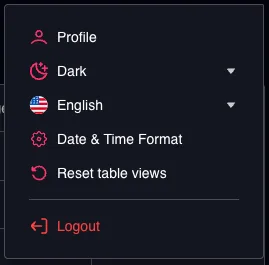
Reset table views on User Menu
It asks for confirmation, then clears all remembered and saved table views for the company you are currently working in.
It does not touch:
- your default filters,
- your theme, language, date format or temperature unit,
- table views in another company you have access to.
The entry only appears when there is actually something stored to reset.
Good to know
- Views are per company. If you have access to more than one company, each keeps its own table views, so a group or tag filter saved in one company can never appear in another.
- Column layouts are personal. There is no company-wide column layout — filters can be set for a whole company, columns cannot.
- New columns are never hidden by an old view. When a release adds a column to a table, your saved column order steps aside for that table so the new column appears in its intended place. Widths and hidden columns you set are kept.
- Tables inside a details page count too — for example the versions of a project or the users of a role. Each one keeps its own view.