Deployments
Device Deployment
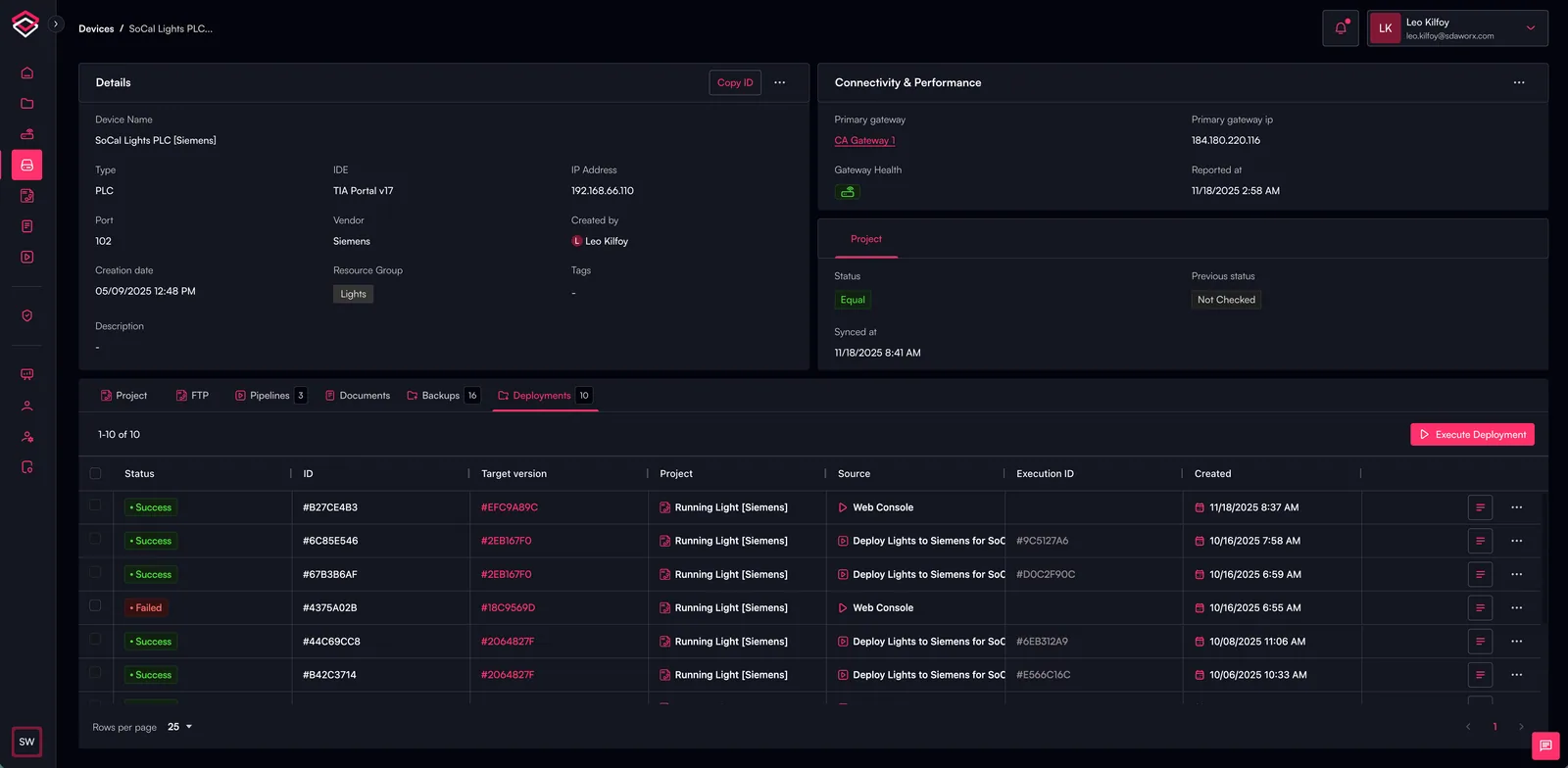
The Device Deployment view provides a complete history and real-time execution interface for deploying automation projects to a device. It consolidates deployment status, version details and execution logs into a single, easy-to-use interface, enabling engineers to manage updates with confidence and full traceability.
Overview
Device Deployment allows you to review and execute project deployments directly from the SDA Platform. Each deployment entry captures essential metadata—including execution status, date and time, target version and the source of the deployment—while also providing access to detailed execution logs. From this view, users can initiate a new deployment to push updated project versions to the device.
Key Capabilities
Deployment History
Displays a chronological list of all deployments executed for the device. Each entry includes:
- Execution Status – Success, failure or in-progress indicators.
- Execution Time & Date – The timestamp of when the deployment was triggered.
- Deployment Source – The repository branch, pipeline or manual action that initiated the deployment.
- Target Version – The specific project version or commit hash deployed to the device.
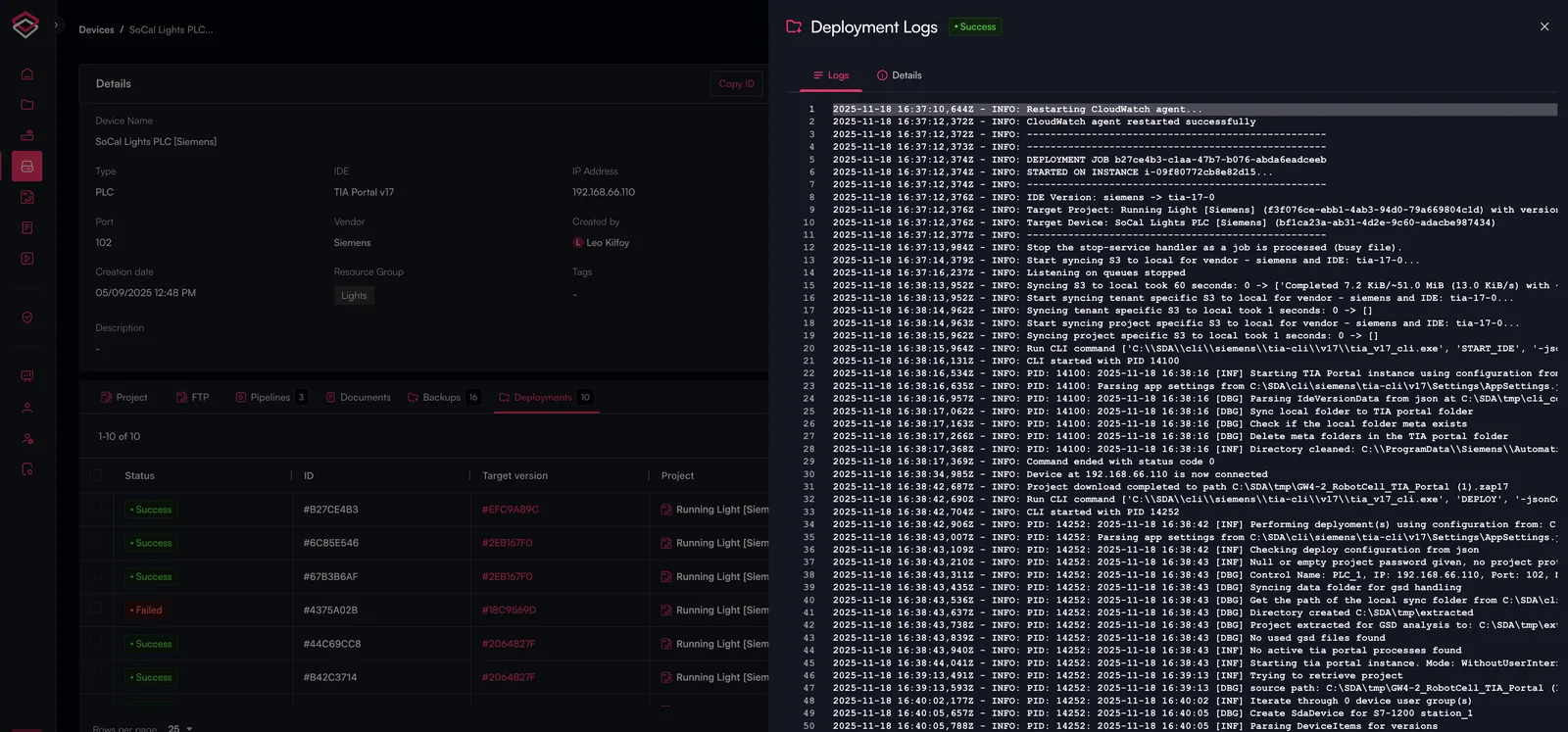
- Execution Logs – Detailed logs and diagnostic output from the deployment process.
Deployment Execution
Deployments can be executed from the Project Deployment view, via Pipelines, or through an approved deployment request. Deployment execution from the deployment view allows users to manually initiate a new deployment from the SDA platform:
- Select the target project version to deploy
- Trigger a deployment action through the UI
- Monitor real-time status as the workflow progresses
- Review logs immediately after completion
Deployment Requests and Approvals
Where a deployment must be authorised before it reaches the device, use a deployment request instead of executing directly. The request records the target version, a title and a description, and waits for someone with approval rights to approve it. Only an approved request can be executed, and only within the approval window the approver sets.
Requests are managed on the Requests view of this tab, next to Jobs:
- Request Deployment — raising a request, reviewing the changes it contains and executing it once approved.
- Approve Deployment — reviewing a request and approving or denying it.
Log Details
Each deployment includes associated logs for:
- Deployment steps and sequencing
- Vendor-specific tool output
- Error messages and validation failures
- Confirmation of the deployed version
This ensures full transparency and enables quick troubleshooting if the deployment fails or deviates from expected behavior.
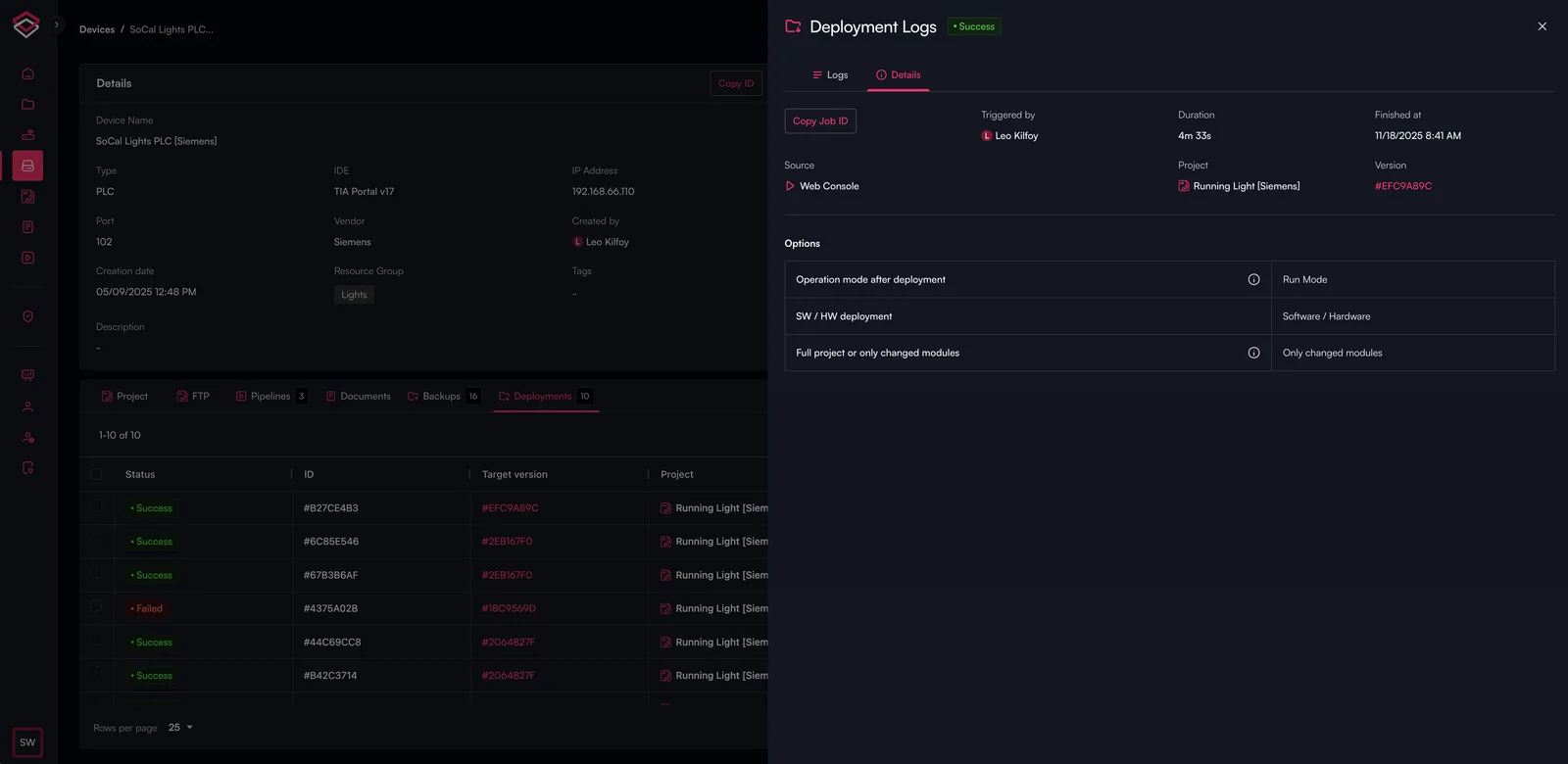
By selecting icon on a deployment, you can find information about the deployment, including detailed logs and job details as shown below.
Detailed Logs
Job Details
Use Cases
- Deploying updated automation projects after code changes
- Rolling out versioned project updates across multiple devices
- Validating that production equipment is running the correct version
- Troubleshooting failed deploys using consolidated log output
- Ensuring compliance with change-management requirements
How It Works in SDA
Once a deployment is initiated, SDA orchestrates the vendor-specific deployment workflow via the connected gateway. The platform securely transfers required files, executes the correct deployment procedure for the device’s vendor and model and streams status and logs back to the user in real time. All deployments are recorded for auditability and operational traceability.
Find out More
Deployment
To find out how configure a deployment pipelines, ples see the Using Pipelines page.
Deployment Requests
For deployments that require approval, see Request Deployment and Approve Deployment.
Vendor Support
For specific vendor support for Pipeline, please see the Pipeline Capability Matrix by Vendor page.