Approve Deployment
Overview
Approving a deployment request is the authorisation step of the deployment workflow. An approver reviews what a requester intends to deploy to a device, compares it against what is currently running, and then either approves it for a defined window of time or denies it.
Approval does not deploy anything. It only permits the deployment to be executed, and only until the approval window expires. Who may approve on a given device is determined by the permissions of the resource group the device belongs to.
For the requester's side of the workflow, see Request Deployment.
Being Notified of a New Request
When a request is raised on a device you can approve, you are notified through the channels set in your Deployments notification category. The notification links directly to the request.
You can also reach open requests from the device itself: open the device, select the Deployments tab and switch to Requests.
To be notified only for the devices you are actually responsible for, set the notification preference on those devices individually using the bell icon in the device header. See Notifications.
Reviewing a Request
Open the request to see everything needed for the decision in one view.
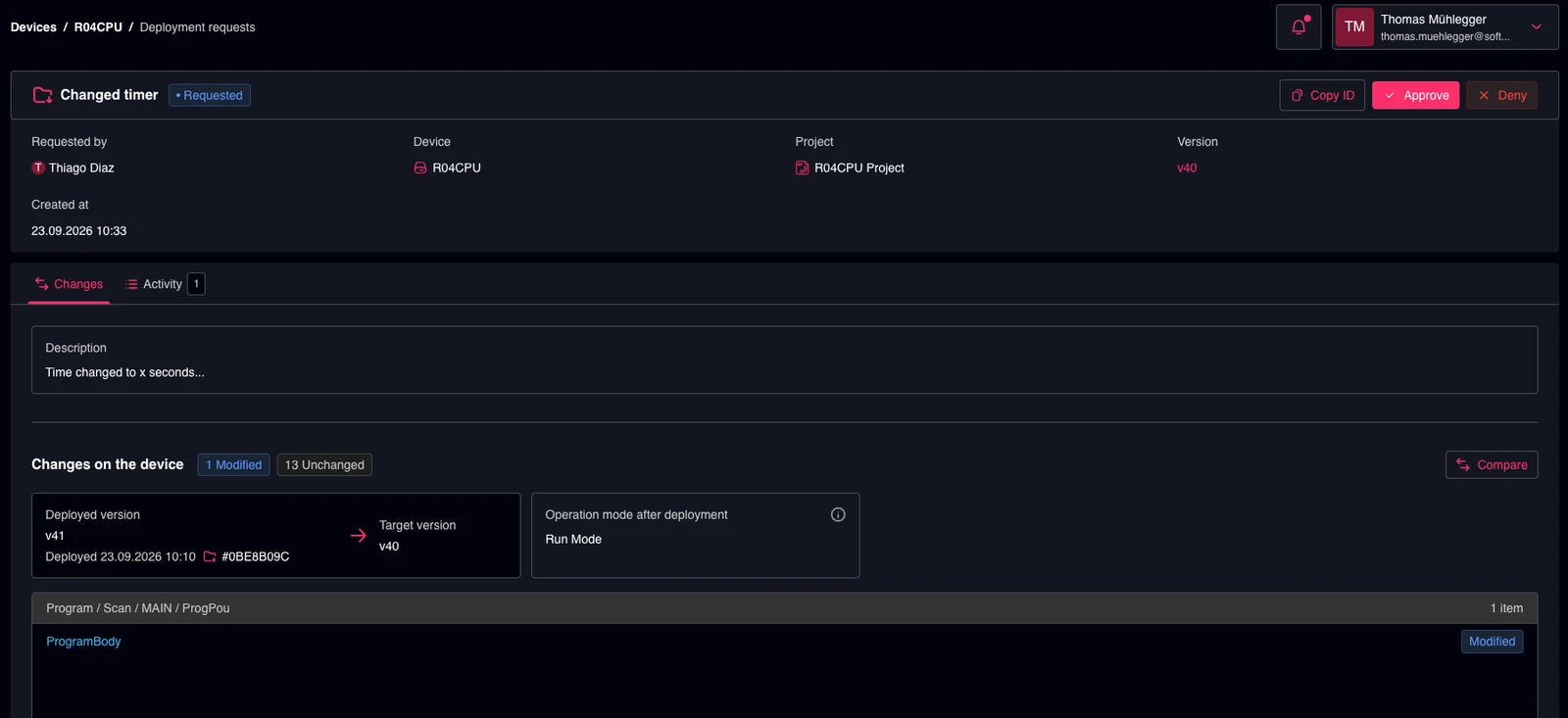
The header shows the title and the Requested status, together with the actions Approve and Deny. Below it the request records who requested it, the target device, the project, the version to be deployed and the time the request was created.
The Changes tab is where the review happens:
- Description – the requester's explanation of the change.
- Changes on the device – the count of Modified and Unchanged objects between the versions.
- Deployed version → Target version – what is on the device now, when it was deployed and which deployment job put it there, next to the version this request would deploy.
- Operation mode after deployment – whether the device will be set to Stop Mode or Run Mode afterwards.
- The list of changed objects by their path in the project, for example
Program / Scan / MAIN / ProgPou. - Compare – opens the full side-by-side comparison of the two versions.
The Activity tab shows the history of the request, so you can see whether it has already been through a decision.
Note that the target version is not necessarily newer than the deployed one. A request may deliberately roll a device back to an earlier version, which the deployed-to-target comparison makes visible.
Approving a Request
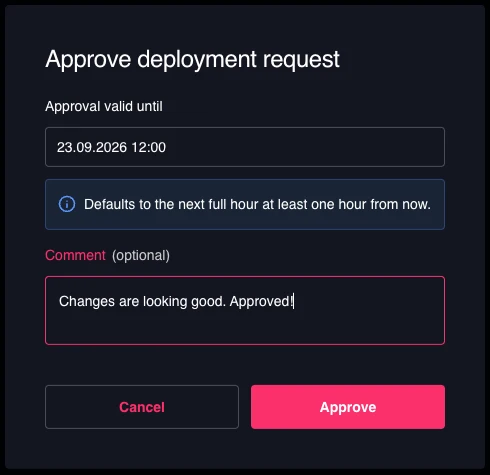
Select Approve. The dialog asks for the approval window and an optional comment.
| Field | Description |
|---|---|
| Approval valid until | The end of the window in which the deployment may be executed. It defaults to the next full hour at least one hour from now, and can be set to any later time. |
| Comment | Optional. Recorded in the request's Activity tab and visible to the requester. |
Confirm with Approve. The request moves to Approved, the requester is notified, and Expires at is set to the time you chose. The requester can now execute the deployment.
If the deployment is not executed before that time, the request expires and cannot be used. A new request has to be raised and approved again.
Choosing the Approval Window
The window is the means of tying a change to an agreed maintenance slot. Set it to end when the slot ends, rather than leaving it open-ended, so that an approval granted today cannot be used to deploy at an unplanned moment days later.
Denying a Request
Select Deny to reject the request. It moves to Denied, cannot be executed, and the requester is notified. Use the comment to explain what needs to change, so the requester can raise a corrected request.
Audit Trail
Every decision is recorded on the request: who approved or denied it, when, the comment they left and the approval window they set. The Activity tab holds the complete history from creation through the decision to execution. Together with the execution logs under Jobs, this provides an end-to-end record of who authorised a change to a device and what was actually deployed.
Use Cases
- Enforcing a four-eyes principle before any change reaches production equipment.
- Confirming that a proposed deployment contains only the changes it is supposed to contain.
- Limiting an authorised deployment to an agreed maintenance window.
- Rejecting a change with a written reason that the requester and the audit record both retain.
- Demonstrating compliance with change-management requirements during an audit.
Find out More
- Request Deployment — raising and executing a request.
- Deployments — the deployment history and execution logs.
- Notifications — configuring deployment notifications.