Notifications
Notifications Overview
System Notifications provide a unified, platform-wide way for users to stay informed about important events, system activity and operational updates within SDA. Accessible from the top navigation bar at all times, the Notifications panel consolidates alerts generated by the platform—such as job completions, backup results, pipeline status changes, deployment outcomes, device connectivity issues, user-assigned tasks and system-level announcements. Each notification includes contextual detail, timestamps and quick-access links to the relevant asset, project, pipeline run or configuration page, enabling users to take immediate action without navigating deep into the interface.
Notifications are delivered in real time and persist until viewed, ensuring that automation engineers, administrators and technicians never miss critical updates affecting their environment. The system also automatically groups related events, provides severity indicators for operational or security-related items and supports fine-grained filtering so users can quickly focus on the events most relevant to their role. Whether monitoring production pipelines, tracking device health, collaborating on projects or reviewing system-wide activity, the System Notifications feature ensures full visibility and faster response across the entire SDA Platform.
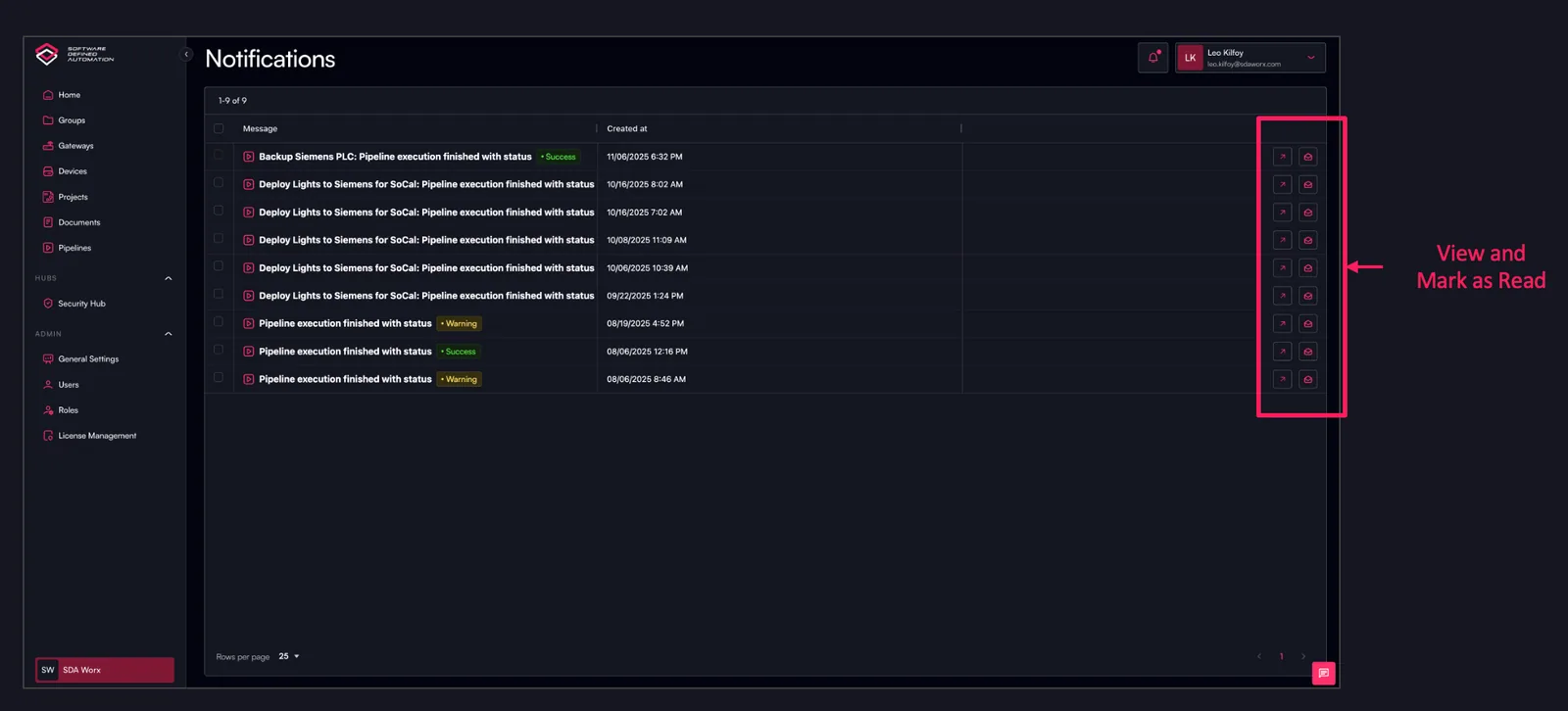
Delivery Channels
Every notification can reach you through two independent channels:
- Console – the notification appears in the Notifications panel in the top navigation bar, marked unread until you open it.
- Email – the notification is additionally sent to the email address of your user account.
The two channels are configured separately, so you can keep a full record in the console while limiting email to the events you genuinely need to act on.
Notification Preferences
Notification preferences are personal: they apply to your user account only and do not affect anyone else in the organization.
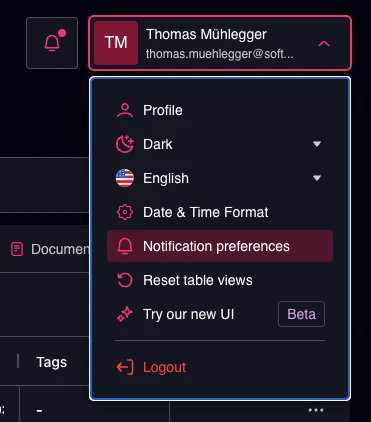
Open them from the user menu in the top-right corner of the screen and select Notification preferences. The same page is reachable from Manage all settings in any bell menu.
How Settings Take Precedence
Preferences are organised in three levels. The most specific level that has its own setting wins:
- A single pipeline or device – overrides everything else for that one object.
- A category – applies to all events of that type that have no object-level setting.
- Global – applies to every category that has no setting of its own.
In practice this means you can silence a channel globally and still keep email for one critical line, or follow the global setting everywhere and make a single noisy pipeline quiet.
Global and Category Settings
The preferences page holds the global switch and the per-category switches together.
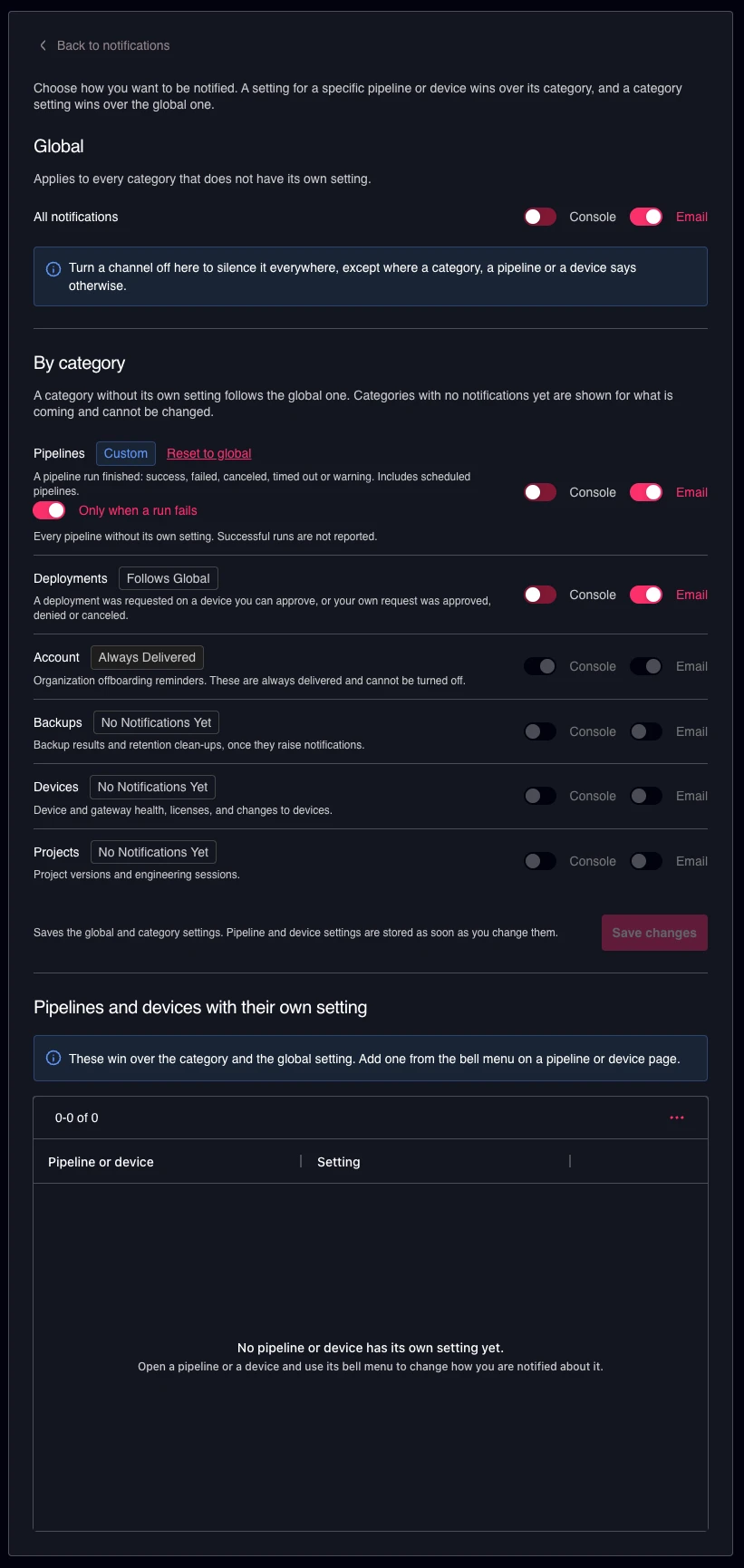
Global contains a single All notifications row with a Console and an Email switch. Turning a channel off here silences it everywhere, except where a category, a pipeline or a device says otherwise.
By category lists every event type the platform can notify you about. Each category shows a badge describing its current state:
- Follows Global – the category has no setting of its own and uses the global one.
- Custom – the category has its own setting. Reset to global removes it again.
- Always Delivered – the category cannot be switched off. Organization offboarding reminders in the Account category are delivered regardless of your settings.
- No Notifications Yet – the category is listed for what is coming and cannot be changed yet.
The categories are:
| Category | Covers |
|---|---|
| Pipelines | A pipeline run finished: success, failed, canceled, timed out or warning. Includes scheduled pipelines. |
| Deployments | A deployment was requested on a device you can approve, or your own request was approved, denied or canceled. |
| Account | Organization offboarding reminders. Always delivered. |
| Backups | Backup results and retention clean-ups. |
| Devices | Device and gateway health, licenses and changes to devices. |
| Projects | Project versions and engineering sessions. |
The Pipelines category carries one additional option, Only when a run fails. With it switched on, every pipeline without its own setting reports failures only and successful runs are not reported.
Global and category changes are applied with Save changes. Pipeline and device settings, described below, are stored as soon as you change them.
At the bottom of the page, Pipelines and devices with their own setting lists every object-level override you have created, so you can see at a glance what is deviating from your categories and remove entries you no longer need.
Setting Notifications for a Single Pipeline
Open a pipeline and use the bell icon in its header. The menu applies to that pipeline alone and overrides the Pipelines category.
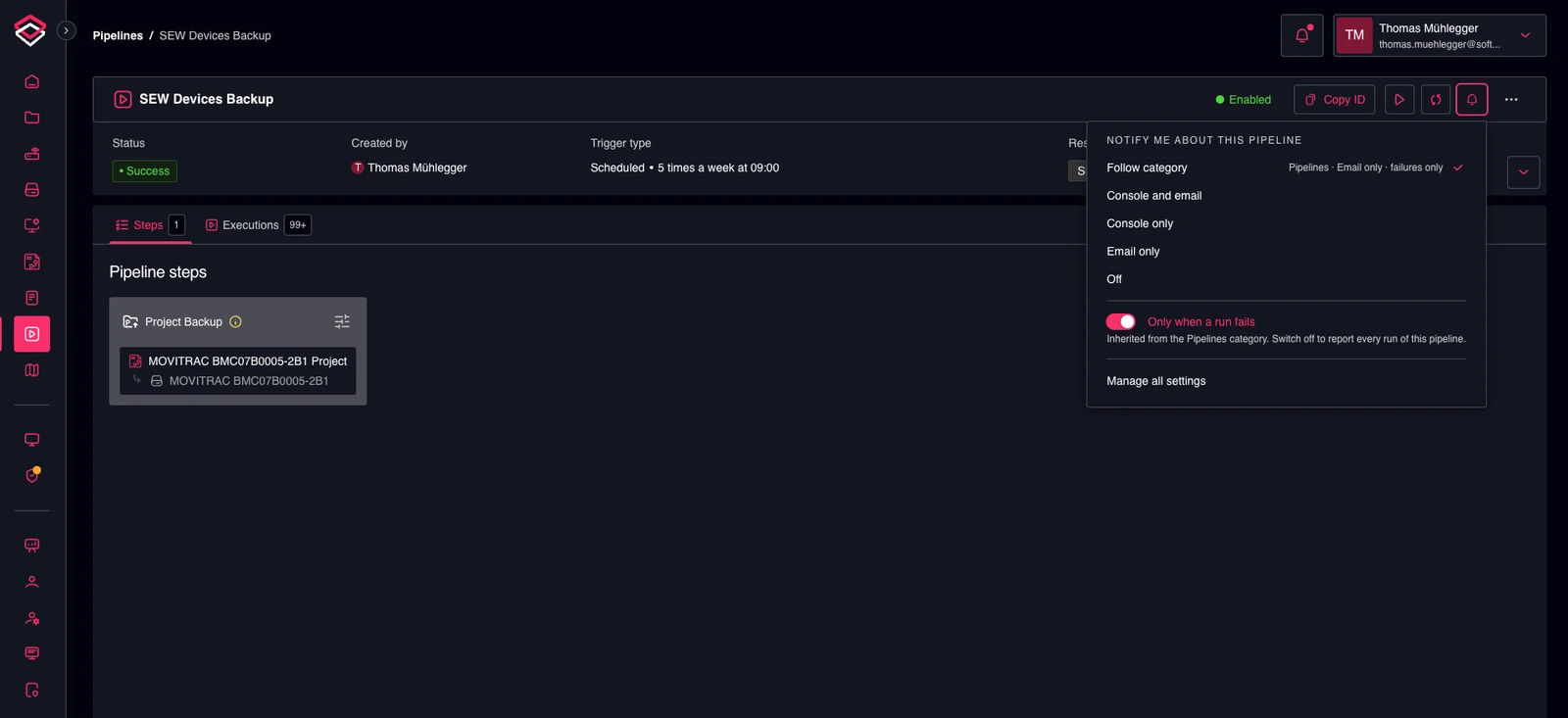
The options are:
- Follow category – use the Pipelines category setting. The current effective setting is shown next to the option.
- Console and email – deliver through both channels.
- Console only – deliver to the Notifications panel only.
- Email only – send email only.
- Off – no notifications for this pipeline.
Only when a run fails is available here as well. It is inherited from the Pipelines category; switching it off reports every run of this pipeline.
Manage all settings opens the full Notification preferences page.
Setting Notifications for a Single Device
Devices work the same way. Open a device and use the bell icon in its header to override the Deployments category for that device.
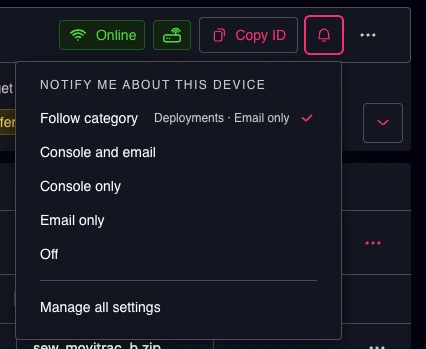
This is the setting that controls whether you are told about deployment requests raised on that device, which matters most for approvers responsible for a specific set of devices. See Approve Deployment for the approval workflow itself.
Use Cases
- Receiving an email the moment a scheduled overnight backup pipeline fails, while keeping successful runs out of your inbox.
- Being notified as an approver whenever a deployment is requested on a device you are responsible for.
- Following your own deployment request through approval, denial or cancellation without watching the page.
- Silencing email globally during a commissioning phase while keeping the console record complete.
- Keeping one critical production line on Console and email while every other pipeline follows the category setting.