Step 2: Gateway Installation & Configuration
With your Gateway and devices configured in the SDA Console, the next phase involves installing the SDA Glue service on your chosen gateway hardware. This installation process differs between Linux and Windows systems, but both approaches follow the same fundamental principle: downloading and configuring a service that runs continuously in the background, ready to establish secure tunnels on demand.
Installation
The installation process consists of two main phases:
- Install the SDA Glue and dependencies in the target system.
- Configure the service with unique credentials from the SDA Console, that authenticate a specific Gateway.
Before beginning the installation, ensure you have administrative privileges on your target system. The installation process requires elevated permissions to install the system service. For Linux, you'll need sudo access. For Windows, you'll need to run PowerShell as an Administrator.
The installation process can accommodate proxy environments, but requires additional configuration steps that we'll detail in each platform-specific section.
Linux
To install SDA Glue on a Linux system with direct internet access, execute the following command in a terminal:
curl -sSL 'https://api.eu1.sdaconsole.io/glue/v1/install.sh' | bash -
This command uses curl to securely fetch the installation script directly from SDA's API endpoint and pipes it to bash for immediate execution. The -sSL flags ensure the transfer is silent, shows errors if they occur and follows any redirects securely.
Details About the Linux Installation Process
The Linux installation uses an automated shell script that handles the complex process of building and configuring the SDA Glue service. This script performs several critical tasks: it installs necessary runtime dependencies and build tools, downloads and compiles the SoftEther VPN Client from SDA's secure repository and installs the SDA Glue as a systemd service that will automatically start with your system.
The compilation approach ensures compatibility across different Linux distributions while maintaining security by building from verified source code. The systemd service integration means your gateway will automatically restart if it encounters issues and will begin operating immediately when your system boots.
If you prefer to examine the installation script before executing it, you can retrieve it separately by either removing the | bash - portion from the command or accessing https://api.eu1.sdaconsole.io/glue/v1/install.sh directly in your web browser. This transparency allows you to understand exactly what the installation process will perform on your system.
Linux with Proxy
When your Linux system requires internet access through a proxy server, you must configure the appropriate environment variables before running the installation script. Set the http_proxy and https_proxy environment variables in your current bash session:
export http_proxy=http://username:password@proxy.company.com:8080
export https_proxy=http://username:password@proxy.company.com:8080
curl -sSL 'https://api.eu1.sdaconsole.io/glue/v1/install.sh' | bash -
Replace the proxy URL with your actual proxy server details, including authentication credentials if required by your network configuration.
Docker
Docker provides an alternative deployment method that offers consistency across different host systems and simplified management through containerization. The SDA Glue Docker image is based on Debian and includes all necessary dependencies pre-configured, eliminating the need for manual compilation or dependency management.
To deploy SDA Glue using Docker, run the following command with the required network capabilities:
docker run -d \
  --name glue \
  --device=/dev/net/tun \
  --cap-add=NET_ADMIN \
  -v glue-data:/var/lib/sdaglue \
  --restart always \
  -p 8081:8080 \
  public.ecr.aws/t9c5s2d1/sdaglue:latest
This command creates a persistent container named "glue" that will automatically restart if it stops unexpectedly. The volume mount preserves your gateway's configuration and authentication data between container restarts or updates.
It also forwards the container port 8080 to the host port 8081, which runs the Glue web server for setting up the application. You can then access it with http://localhost:8081/.
When running multiple SDA Glue containers on the same host, ensure each container uses unique names and volume mounts to prevent conflicts:
docker run -d --name glue-factory -v factory-data:/var/lib/sdaglue [...]
For comprehensive Docker deployment guidance, including advanced networking configurations, troubleshooting steps and production deployment best practices, visit the complete documentation:
Complete deployment details, configuration examples and troubleshooting guidance.
Windows
Open PowerShell as an Administrator by searching for "PowerShell" in the Windows search bar, right-clicking on the result and selecting "Run as administrator". Once you have an elevated PowerShell session, execute the following command:
iwr -Uri 'https://api.eu1.sdaconsole.io/glue/v1/install.ps1' -UseBasicParsing | iex
This PowerShell command uses Invoke-WebRequest (abbreviated as iwr) to fetch the installation script and pipes it to Invoke-Expression (abbreviated as iex) for immediate execution. The -UseBasicParsing parameter ensures compatibility across different Windows versions and configurations.
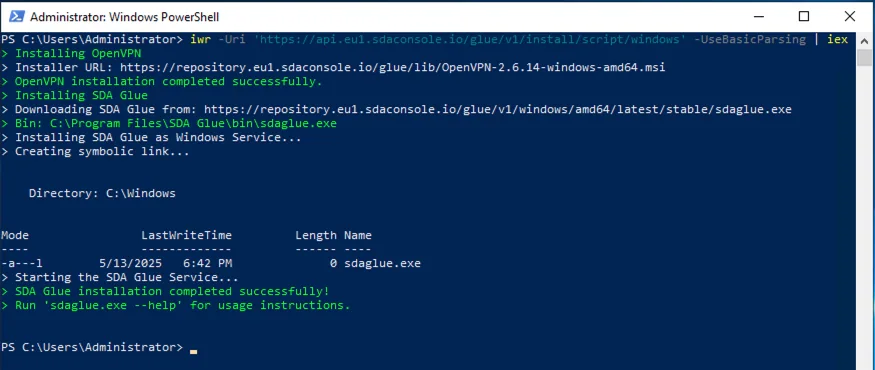
Successful installation of the SDA Glue with PowerShell
Details About the Windows Installation Process
The Windows installation process uses PowerShell to download and execute an installation script that configures your system for SDA connectivity. Unlike the Linux approach that compiles software from source, the Windows installer downloads pre-built binaries of OpenVPN Community Client and the SDA Glue service, then registers SDA Glue as a Windows Service.
The Windows Service integration ensures that SDA Glue starts automatically with your system and restarts automatically if it encounters any issues. This provides the same reliability benefits as the Linux systemd approach, but uses Windows' native service management infrastructure.
Similar to the Linux approach, you can examine the installation script before executing it by removing the | iex portion or accessing https://api.eu1.sdaconsole.io/glue/v1/install.ps1 directly in your web browser.
Windows with Proxy
When your Windows system operates behind a proxy server, the installation process requires a two-stage approach. First, you'll configure the proxy settings and download the installation script. Then, you'll execute the script with the appropriate proxy configuration.
Begin by setting PowerShell variables for your proxy configuration:
# Configure your specific proxy details
$ProxyHost="proxy.company.com:8080"
$ProxyUser="your-username"

# Download the installation script through the proxy
iwr -Uri 'https://api.eu1.sdaconsole.io/glue/v1/install.ps1' -UseBasicParsing -OutFile .\glue-install.ps1 -Proxy http://$ProxyHost -ProxyCredential $ProxyUser

# Execute the script with proxy configuration
.\glue-install.ps1 -Proxy $ProxyHost -ProxyCredential $ProxyUser
Note the important distinction in proxy URL formatting: the Invoke-WebRequest command requires the full URL scheme (http://proxy.company.com:8080), while the installation script expects only the hostname and port (proxy.company.com:8080).
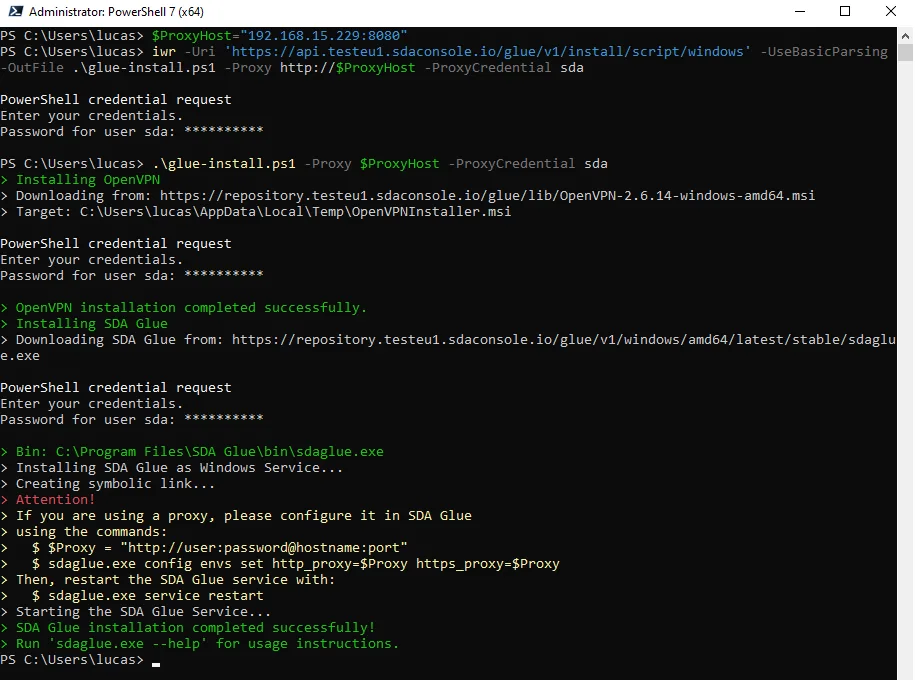
As the logs at the bottom state, we need to configure the Proxy server in SDA Glue using the CLI
Authentication and Login
After successfully installing the SDA Glue software, you must authenticate your physical gateway with the SDA Cloud services. This authentication process uses unique credentials generated by the SDA Console for your specific gateway. These credentials consist of a short gateway identifier and a one-time password that rotates periodically for enhanced security.
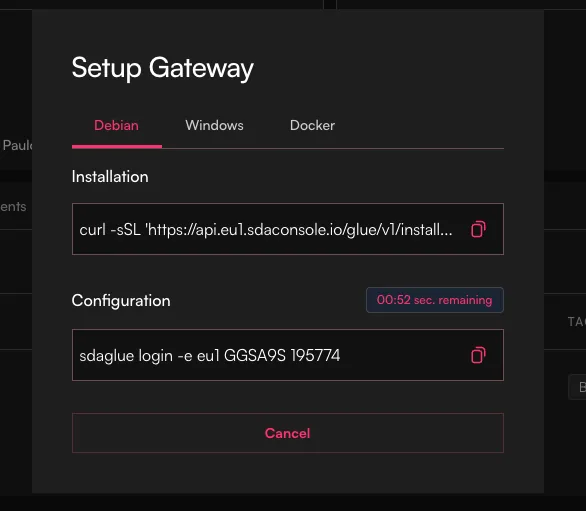
Gateway setup commands from the SDA Console
Return to the SDA Console and locate the second command in your gateway's setup dialog. This command will look similar to the following examples:
Linux
sudo sdaglue login -e eu1 G1ABCD 123456
Docker
docker exec glue sdaglue login -e eu1 G1ABCD 123456
Windows
sdaglue.exe login -e eu1 G1ABCD 123456
The command structure includes the -e eu1 flag specifying the European region endpoint, followed by your gateway's unique identifier (such as G1ABCD) and the one-time password (such as 123456). These values are specific to your gateway and will differ from the examples shown.
The one-time password refreshes periodically for security purposes. If you encounter authentication failures, return to the SDA Console to retrieve the current password from the gateway setup dialog.
Service Status
After completing the installation and authentication process, verify that the SDA Glue service is running correctly on your system.
Linux
Check the service status using systemd commands:
sudo systemctl status sdaglue
To monitor live log output and troubleshoot any issues:
sudo journalctl -efu sdaglue -n 100
Docker
The service logs can be retrieved from Docker containers with:
docker logs -n 100 --follow glue # tracks the latest 100 logs from the service
Windows
You can verify the service through the Windows Services application. Search for "Services" in the Windows search bar and look for "SDA Glue" in the service list. The service should show as "Running" with a startup type of "Automatic".
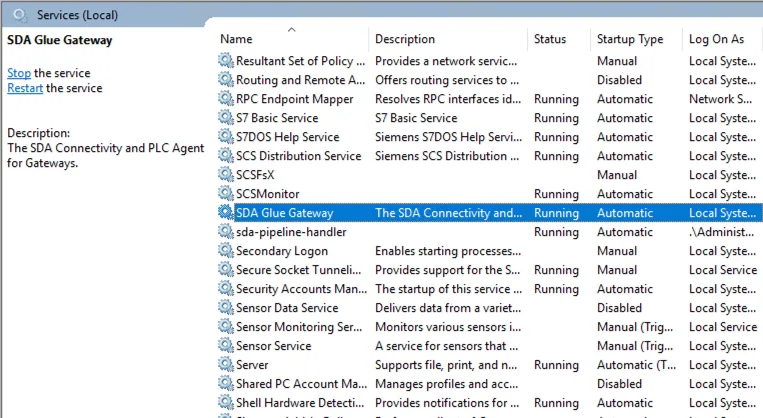
Visualising active Services on Windows
Windows Services produce Event Logs, that can be accessed on the Event Viewer, under Windows Logs → Application. Use the search bar to open the Event Viewer.
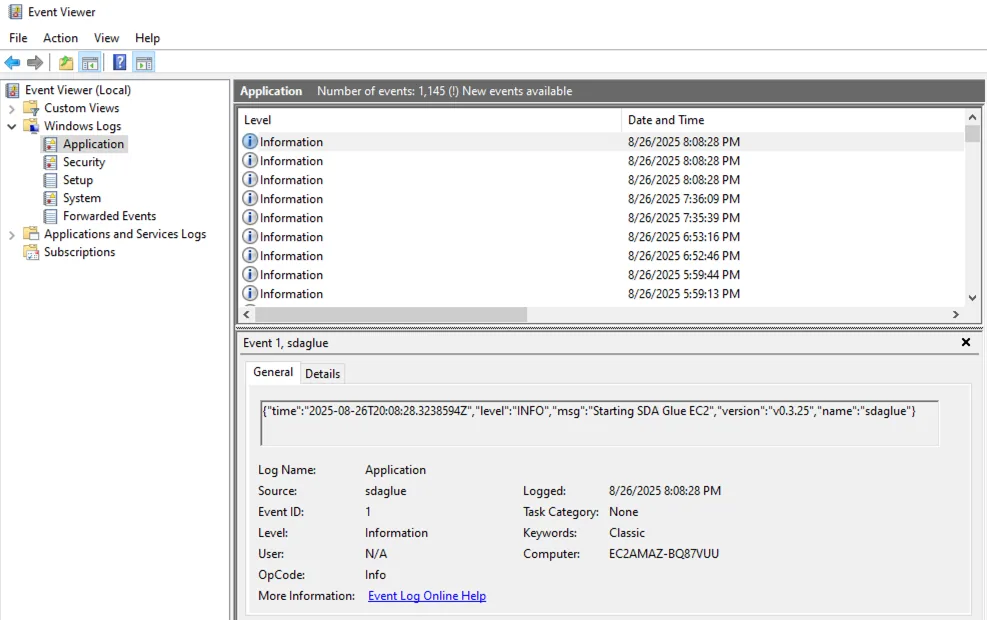
Accessing SDA Glue logs on the Event Viewer
Configuration
SDA Glue allows you to modify its behaviour to work optimally within your specific network environment. These configuration adjustments ensure reliable connectivity regardless of your industrial network's unique characteristics, whether you're dealing with proxy servers, firewall restrictions or different communication protocols.
We use environment variables to control the service. Configuration changes require a service restart to take effect. Environment variables keep the same configuration parameter naming convention, but it uses the GLUE prefix and is separated by underscores:
log.level -> GLUE_LOG_LEVEL
webui.enabled -> GLUE_WEBUI_ENABLED
View current configuration parameters:
# Linux & Windows
sdaglue config describe

# Docker
docker exec glue sdaglue config describe
Setting parameters:
# Linux & Windows
sdaglue config set --log.level debug --webui.enabled true --webui.port 8080

# Docker
docker exec sdaglue config set --log.level debug --webui.enabled true --webui.port 8080
Retrieving parameters:
# Linux & Windows
sdaglue config list

# Docker
docker exec sdaglue config list
Restart service after changes:
# Linux & Windows
sdaglue service restart

# Docker
docker exec glue sdaglue service restart # or
docker restart glue
MQTT Transport Protocol
One of the most important configuration decisions involves choosing how your gateway communicates with the SDA Cloud services. SDA Glue supports two transport protocols, each designed for different network environments:
| Transport | Protocol | Port | Use Case |
|---|---|---|---|
| MQTT | SSL / TCP | 443 | Standard networks with direct internet access |
| MQTT over WebSocket | WebSocket Secure (TCP) | 443 | Networks with transparent proxies or SSL inspection |
For WebSocket transport:
# Linux & Windows
sdaglue config set --iot.transport websocket

# Docker
docker exec glue sdaglue config set --iot.transport websocket
For standard MQTT transport:
# Linux & Windows
sdaglue config set --iot.transport mqtt

# Docker
docker exec glue sdaglue config set --iot.transport mqtt
If the service is already logged in and connected, the new transport protocol will only take effect after the next service restart.
When to Use WebSocket Transport
Transparent Proxies: Some corporate networks use transparent proxies that intercept and analyse network traffic. These proxies may interfere with standard MQTT SSL connections but typically allow WebSocket connections to pass through without issue.
Restrictive Firewalls: Networks with deep packet inspection or strict protocol filtering may block MQTT traffic while allowing WebSocket connections, which appear similar to standard web traffic.
Corporate Network Policies: Some organisations have policies that restrict non-HTTP protocols, making WebSocket transport the preferred choice for compliance.
Proxy Server
When your network requires all internet traffic to flow through a specific proxy server, SDA Glue must be configured with the proxy details to establish connections with SDA Cloud services. This is particularly common in corporate environments where direct internet access is restricted for security purposes.
Proxy addresses follow the standard format: scheme://username:password@hostname:port
- Scheme: Usually
http://orhttps:// - Username/Password: Authentication credentials (if required by your proxy)
- Hostname: The proxy server's address
- Port: The proxy server's port number
You must configure both HTTP and HTTPS proxy settings to ensure complete coverage of SDA Glue's communication needs.
If your proxy server doesn't require authentication, simply omit the username and password:
proxy_server="http://proxy.company.com:8080"
Linux
proxy_server="http://username:password@proxy.company.com:8080"
sdaglue config set --proxy.http=$proxy_server --proxy.https=$proxy_server

# Restart the service to apply changes
sdaglue service restart
Docker
proxy_server="http://username:password@proxy.company.com:8080"
docker exec glue sdaglue config set --proxy.http=$proxy_server --proxy.https=$proxy_server

# Restart the container to apply changes
docker restart glue
Windows
$ProxyServer="http://username:password@proxy.company.com:8080"
sdaglue.exe config set --proxy.http=$ProxyServer --proxy.https=$ProxyServer

# Restart the service to apply changes
sdaglue.exe service restart
Common Issues
Corporate Network with Transparent Proxy
Problem: Gateway connects initially but frequently disconnects or shows unstable connectivity.
Solution: Switch to WebSocket transport protocol.
Restrictive Firewall Environment
Problem: Gateway cannot establish initial connection to SDA Cloud services.
Solution: Configure WebSocket transport and verify that outbound HTTPS connections are allowed on port 443.
Authenticated Proxy Server
Problem: Gateway cannot connect through corporate proxy requiring authentication.
Solution: Configure both proxy settings with proper authentication credentials and restart the service.
With these configuration options properly set, your SDA Glue service will adapt to your network environment and maintain reliable connectivity to the SDA Cloud services, enabling secure access to your industrial devices.