Project View & Compare
In-Browser Project Viewing
SDA provides an integrated browser-based viewer that allows users to examine project contents directly within the platform interface. This eliminates the need to download files locally and provides immediate access to:
- Project file structure and contents
- Code syntax highlighting
- Configuration files and settings
- Archive contents and metadata
Version Comparison
The platform includes a comprehensive version comparison feature that enables users to analyze differences between project versions. This functionality allows you to:
- Compare any two project versions side-by-side
- Identify added, modified or deleted files
- Review code changes with highlighted differences
- Track project evolution over time
- Understand the impact of version updates
The comparison tool provides a clear visual representation of changes, making it easy to understand what has been modified between different project iterations.
View a project
To view your project contents directly in the browser:
- Navigate to the desired project's detail page
- Locate the View button (eye icon) in the top-right corner of the interface
- Click the eye icon to launch the in-browser project viewer
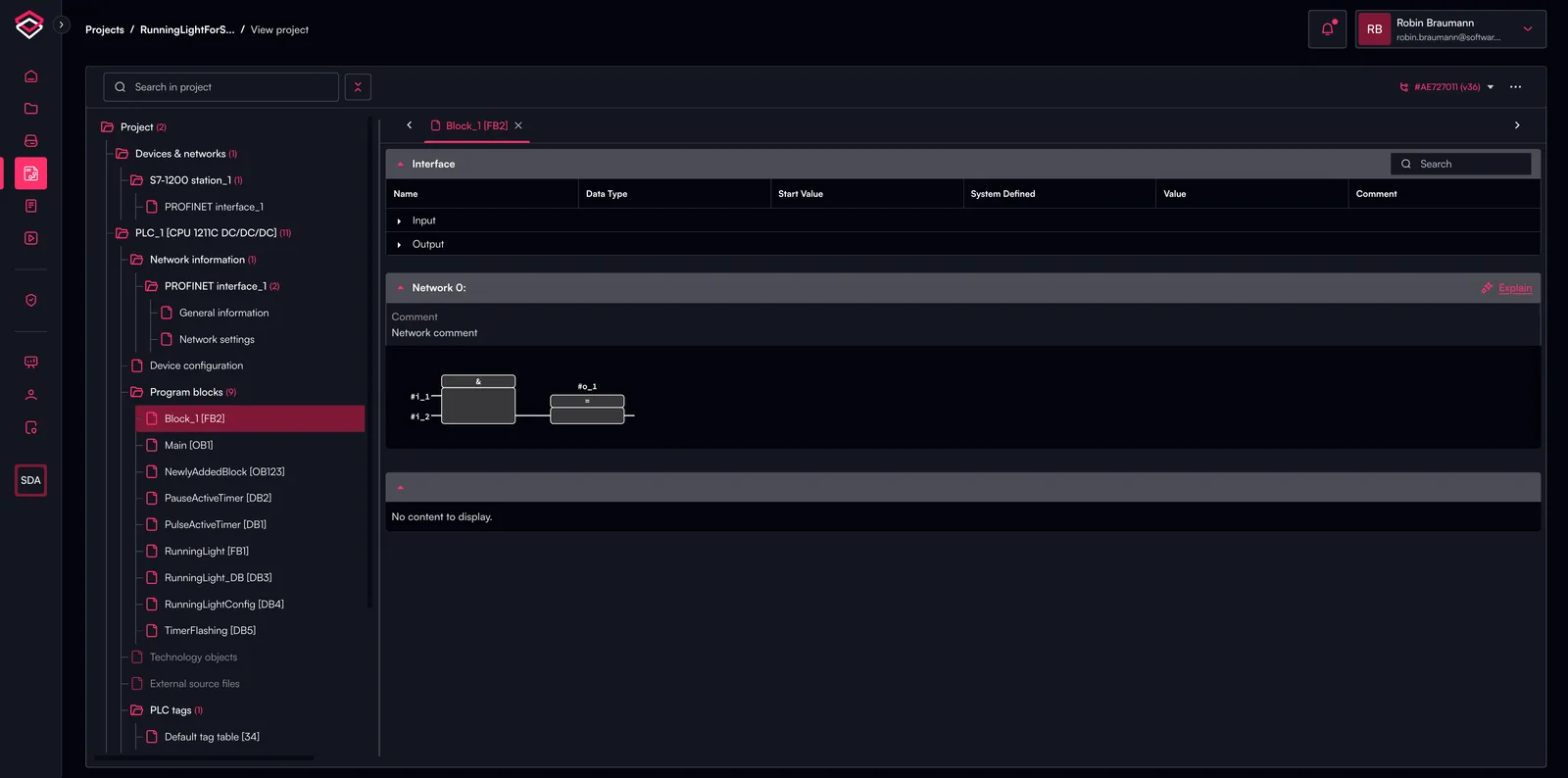
You can navigate in the project tree on the left and conveniently expand or collapse groups of items via the settings icon next to the search field. The search field allows you to search for any project components in the tree.
Compare different project versions
To compare two project versions and analyze the differences between them:
- Navigate to the desired project's detail page
- Click on the Versions tab to view all available project versions
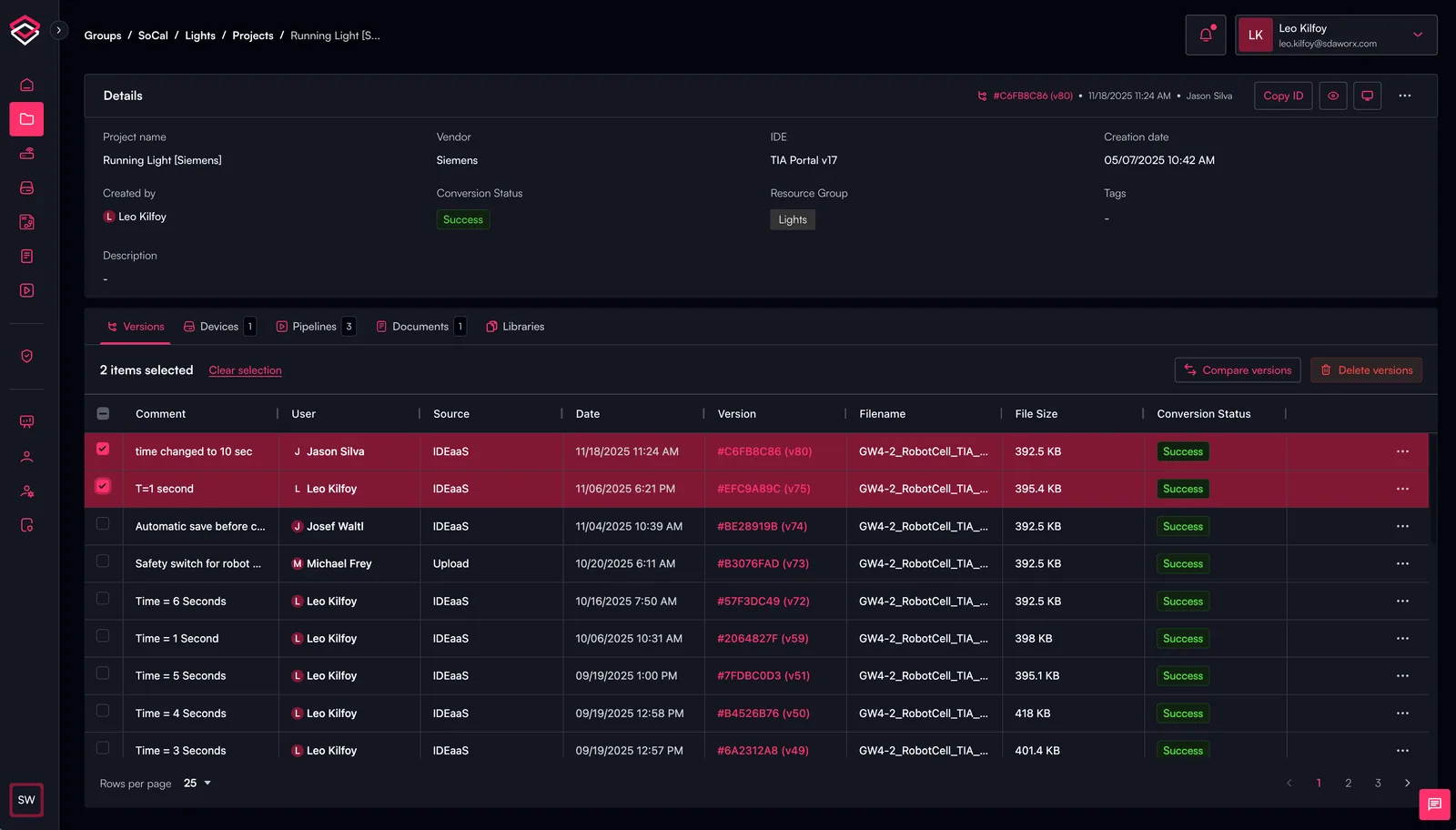
- Select the two versions you wish to compare by clicking on them
- Once both versions are selected, a "Compare Versions" button will appear in the top-right corner of the Versions tab
- Click "Compare Versions" to launch the side-by-side comparison interface
The project viewer will open and display a comparison of before and after for each project component.
Which changes have been made are highlighted in the project tree on the left side via small icons next to the project component:
- Blue: Component was modified
- Red: Component was deleted
- Green: Component was added
Note that by default only changed components are shown. By clicking on the settings icon next to search field, all components ("items") can be made visible.
%20(1).webp)