SSO via Azure Active Directory
Overview
This section explains how to configure Single Sign-On (SSO) for your SDA tenant using Azure Active Directory—now Microsoft Entra ID—via SAML-based authentication. It guides you through the required setup steps in both SDA and Azure to enable secure, centralized identity management. SDA also supports other identity providers such as Okta, as well as any service that implements standard SAML or OAuth protocols. If you are using a different provider, please contact SDA for further guidance on integration.
Prerequisites
If you are an Enterprise Customer, please contact support@softwaredefinedautomation.io for SDA to prepare the Azure AD integration before proceeding with the setup.
Required SDA Parameters
To set up SSO via Azure AD, you will need the following SDA parameters:
| Parameter | Value |
| Entity ID | urn:amazon:cognito:sp:eu-west-1_RIyybpweM |
| Reply URL | https://auth.eu1.sdaconsole.io/saml2/idpresponse |
| Sign on URL | https://app.eu1.sdaconsole.io |
| Relay State | https://app.eu1.sdaconsole.io |
| Logout URL | https://app.eu1.sdaconsole.io |
During the integration we can provide you with the signing and encryption certificates for SAML!
Required SAML Attributes
SDA requires the following SAML attributes to be configured:
User Groups are not mandatory if Manage Users in SDA is active for the IDP.
User Groups Claim Setting
If User Groups should be managed in Active Directory / Entra, the following settings for the related claim must be provided:
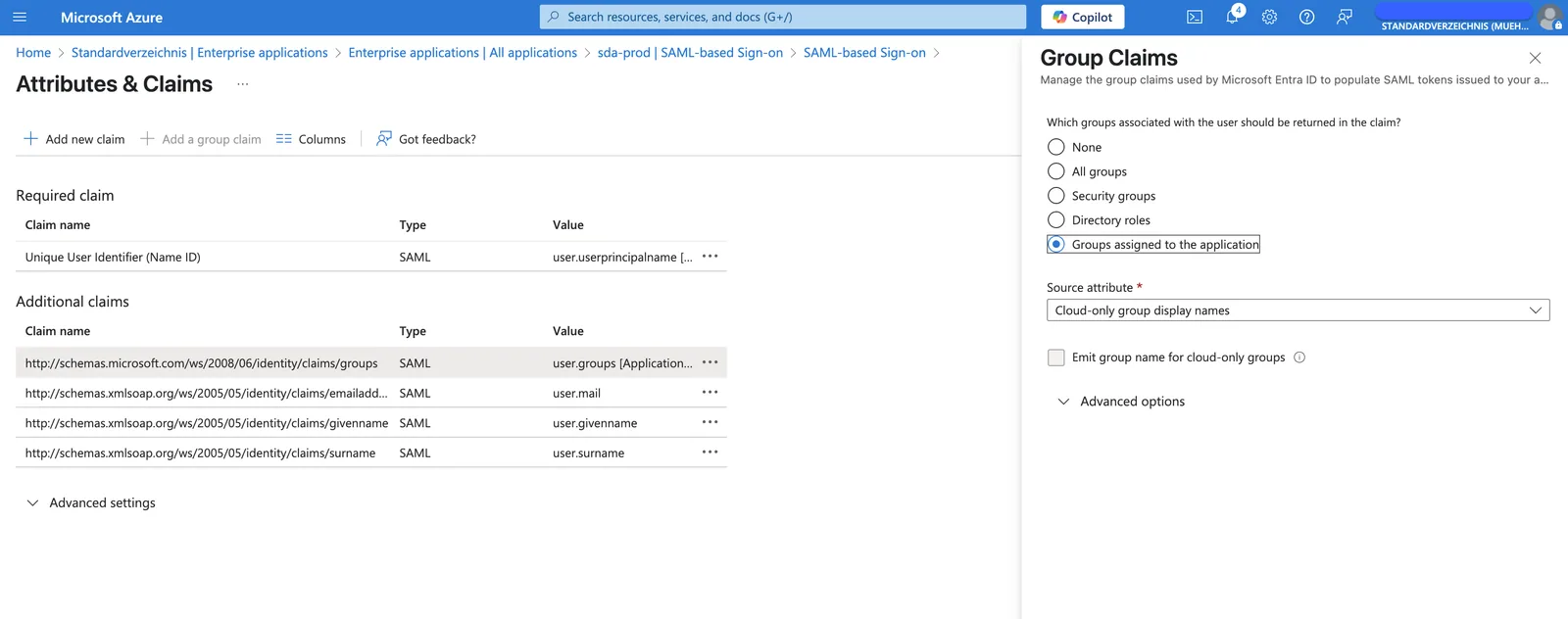
Metadata Requirements
These attributes should be shared with your SDA contact via an XML "Metadata" document using UTF-8 character set.
The Name identifier format must be set to Default (equals to Persistent).
Configuration Options
The SAML integration supports two configuration options:
1. Migrate Existing (non-SSO) Users
This option determines whether users logging in via SSO are automatically migrated to SSO authentication.
When activated:
- If a non-SSO user exists for the same email address, the user will be migrated to SSO
- Login via username/password will no longer be possible after SSO login
- All user groups are assigned from SSO-User Group mapping
2. Manage Users in SDA
This option specifies whether to manage users and user roles within SDA for this identity provider.
If a user role has an SSO mapping SSO_DEFAULT, this role is automatically assigned for new users!
When activated:
- SDA will manage users and user roles internally
- The Identity Provider (IDP) does not need to pass user groups
- Users must be created in SDA before they can login
- Except there is a
SSO_DEFAULTuser role defined!
- Except there is a
- Users must have the appropriate user roles attached
User Groups and Role Mapping
Note: If SSO is enabled for the tenant account, an SSO mapping can be applied to User Roles when editing existing roles.
When SSO is configured, user group mappings from the identity provider can be automatically applied to corresponding user roles within SDA, streamlining the user management process.